-
X703: Difference between revisions
No edit summary |
Replace <comments/> with <comment-streams /> |
||
| (6 intermediate revisions by 3 users not shown) | |||
| Line 5: | Line 5: | ||
[[File:X703-07.jpg|thumb|right|X703 V1.3 / NEW V1.2 Dimensions]] | [[File:X703-07.jpg|thumb|right|X703 V1.3 / NEW V1.2 Dimensions]] | ||
[[File:IMG-0233-4Pin Function Header.jpg|thumb|right|X703 OLD V1.2 Function Header]] | [[File:IMG-0233-4Pin Function Header.jpg|thumb|right|X703 OLD V1.2 Function Header]] | ||
==Safety Instructions & Warnings== | |||
{{UPS Safety Warning}} | |||
==Update History== | ==Update History== | ||
| Line 10: | Line 13: | ||
'''The latest version currently on sale is X703 V1.3, which is actually the NEW-X703 V1.2''', with only the difference in silk screen printing. | '''The latest version currently on sale is X703 V1.3, which is actually the NEW-X703 V1.2''', with only the difference in silk screen printing. | ||
In July 8th 2022, the X703 V1.2 UPS has done a small update,the "AON" Pin has been updated to "PON" Pin, also the pcb components position will be a little difference. Please refer to the below photo: | In July 8th 2022, the X703 V1.2 UPS has done a small update,the "AON" Pin has been updated to "PON" Pin, also the pcb components position will be a little difference. Please refer to the below photo: | ||
| Line 26: | Line 28: | ||
==Overview== | ==Overview== | ||
The X703 is a new design UPS board which is specially designed for Raspberry Pi 4 Model B only. It provides an advanced uninterruptible power supply and power. The X703 adds 4 test pins to achieve powered between X703 and Raspberry Pi 4 without additional cable. | The X703 is a new design UPS board which is specially designed for Raspberry Pi 4 Model B only. It provides an advanced uninterruptible power supply and power. The X703 adds 4 test pins to achieve powered between X703 and Raspberry Pi 4 without additional cable. | ||
==Features== | ==Features== | ||
| Line 48: | Line 40: | ||
* On-board red LED show the status of battery charging or fully charged | * On-board red LED show the status of battery charging or fully charged | ||
* On-board push button to control power on /off (Press-ON, Hold the button pressed at least 2s -OFF) | * On-board push button to control power on /off (Press-ON, Hold the button pressed at least 2s -OFF) | ||
* Allows power input via Type-C socket or | * Allows power input via Type-C socket or XH2.54 connector | ||
* On-board 2-Pin PH2.0 connector allows to connect external power switch | * On-board 2-Pin PH2.0 connector allows to connect external power switch | ||
* DON'T supports software safe shutdown. | * DON'T supports software safe shutdown. | ||
| Line 70: | Line 62: | ||
X703-01.jpg|X703 OLD V1.2 Packing List | X703-01.jpg|X703 OLD V1.2 Packing List | ||
</gallery> | </gallery> | ||
==Matching Case== | |||
If you want a matching enclosure, you can refer to [https://www.printables.com/model/1263863-raspberry-pi-4-with-geeworm-x703-magnetic-case here] and 3D print it yourself. | |||
==User Manual== | ==User Manual== | ||
| Line 87: | Line 82: | ||
<!--Add review function! --> | <!--Add review function! --> | ||
< | <comment-streams id="main" /> | ||
[[Category:Product Manual]] | [[Category:Product Manual]] | ||
[[Category:Raspberry pi]] | [[Category:Raspberry pi]] | ||
Latest revision as of 10:13, 27 May 2026


Safety Instructions & Warnings
- The power adapter must with overvoltage and surge voltage protection; otherwise, it may easily damage the circuit board. Damage caused by a substandard power supply will not be covered under warranty.
- It is essential to read and understand these safety instructions and warnings before charging your batteries.
- Lithium Polymer and Li-ion batteries are volatile. Failure to read and follow the instructions below may result in fire, personal injury, and damage to property if charged or used improperly.
- Never make a wrong polarity connection when charging or discharging battery packs. Always double-check the polarity of the battery's connector to ensure that "+" is connected to "+" and "-" is connected to "-".
- Do not mix and use old batteries with new batteries, or batteries with different brand names.
- Lithium batteries have a limited cycle life. Please replace old batteries with new ones when they reach their service life or when they are two years old, whichever comes first.
- When charging the Battery Pack, please place the battery in a fireproof container. Do not leave the UPS shield on wood material or carpet unattended.
- Keep the UPS shield away from children to ensure their safety.
- Ensure your fingers do not touch the solder pads when inserting the battery into the battery holder, as this could cause a short circuit. This is extremely important!!!
- Make sure to insert the battery before turning on the UPS.
- Make sure to insert the battery before connecting the external charger to charge it.
- Please watch Main Video and Tutorial Video regarding 18650 batteries at: https://www.staysafebattery.com/en/
- Battery Recommend for Geekworm UPS board, please refer to: File:NCR18650B.pdf
Update History
NOTE: The X708, X703 UPS does not support Raspberry Pi 5.
The latest version currently on sale is X703 V1.3, which is actually the NEW-X703 V1.2, with only the difference in silk screen printing.
In July 8th 2022, the X703 V1.2 UPS has done a small update,the "AON" Pin has been updated to "PON" Pin, also the pcb components position will be a little difference. Please refer to the below photo:

Note
- NOT supports software safe shutdown.
- Please use the type-c of the X703 to charge instead of the Raspberry Pi 4
- Please use high quality power supply, the low quality power supply will generate surge Voltage, which will damage the board chip. we recommend Panasonic brand NCR18650BD 18650 lithium battery.
- If 【CHG】 pin is OPEN, battery charging will be started after powering on(short press the on-board button to turn on) and stopped after powering off(press and hold for 2-3 seconds to turn off). If 【CHG】 pin is SHORT, the battery will be automatically charged once your power adapter connected. The purpose of adding the 【CHG】 jumper is to extend the life cycle of the battery by reducing the number of recharges.
- If【PON】 pin is SHORT, power always on, power button disabled; If【PON】 pin is OPEN, press power button to turn on, and hold 3s to turn off.
- Be sure to power off & remove the 18650 battery then wait for 2 seconds when toggle charging mode
Overview
The X703 is a new design UPS board which is specially designed for Raspberry Pi 4 Model B only. It provides an advanced uninterruptible power supply and power. The X703 adds 4 test pins to achieve powered between X703 and Raspberry Pi 4 without additional cable.
Features
- Smart Uninterruptible Power Supply (UPS)
- ultra-thin
- Supports 3A via Type-C socket fast charging
- Add 4 test pins to achieve powered between X703 and Raspberry Pi 4 without additional cable.
- Only work with single 18650 Lithium Ion battery
- Integrated battery protection circuit
- Integrated over current protection and over voltage protection
- On-board 4 green LEDs indicate battery charging and discharging levels of 25%, 50% , 75% and 100%
- On-board red LED show the status of battery charging or fully charged
- On-board push button to control power on /off (Press-ON, Hold the button pressed at least 2s -OFF)
- Allows power input via Type-C socket or XH2.54 connector
- On-board 2-Pin PH2.0 connector allows to connect external power switch
- DON'T supports software safe shutdown.
Specifications
- Power supply via Type-C socket: 5Vdc ±5%, ≥3A;
- UPS output: 5.1V ±5% Max 3A
- UPS charging current: 1A
- Terminal Battery Voltage: 4.2V
- Recharge Threshold: 4.1V
Packing List
- 1 x X703 18650 UPS Shield
- 1 x Jumper link Pitch 2.54mm
- 6 x M2.5 *4mm Screws
- 2 x M2.5 *5+3mm Spacers
- 2 x M2.5 *5mm Spacers
-
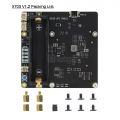 X703 V1.3 / NEW V1.2 Packing List
 -
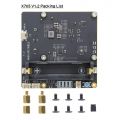 X703 OLD V1.2 Packing List


Matching Case
If you want a matching enclosure, you can refer to here and 3D print it yourself.
User Manual
- Dimensions source file (DXF): File:X703-V1.dxf - You can view it with Autodesk Viewer online
- 18650 battery dimension

Do not use 18650 battery with built-in protection circuit
FAQ
Q1: Will X703 UPS work with the rpi poe hat?
A:No, the X703 UPS does not support rpi poe hat.