-
USB 16x2 RGB LCD: Difference between revisions
Jump to navigation
Jump to search
No edit summary |
Replace <comments/> with <comment-streams /> |
||
| (3 intermediate revisions by 2 users not shown) | |||
| Line 1: | Line 1: | ||
{{Deprecated}} | |||
[[File:IMG_1149.jpg|thumb|right|Raspberry Pi USB 16x2 RGB LCD sku:443780]] | [[File:IMG_1149.jpg|thumb|right|Raspberry Pi USB 16x2 RGB LCD sku:443780]] | ||
{{GD Template Impl}} | {{GD Template Impl}} | ||
| Line 86: | Line 87: | ||
== Download == | == Download == | ||
Python annex: [[File:USBLCD1.zip|thumbnail]] | Python annex: [[File:USBLCD1.zip|thumbnail]] | ||
* [https://github.com/xyb/lcd2usb| Referance software for python course] | |||
* [https://raw.github.com/rbarrois/mpdlcd/master/mpdlcd.conf| MPDlcd] | |||
* [https://pypi.python.org/pypi/mpdlcd/0.4.0| MPDlcd/0.4.0] | |||
* [https://github.com/rbarrois/mpdlcd| MPDlcd software] | |||
== Packing List == | == Packing List == | ||
* 1 x LCD Screen | * 1 x LCD Screen | ||
| Line 102: | Line 98: | ||
[[Category:Product Manual]] | [[Category:Product Manual]] | ||
[[Category:Raspberry pi]] | [[Category:Raspberry pi]] | ||
< | <comment-streams id="main" /> | ||
Latest revision as of 10:13, 27 May 2026
⚠️ Deprecated: This page is outdated and may contain inaccurate information. It is kept for reference only.


Introduction
SKU: 443780 USBLCD is suitable for Raspberry Pi Model B and B Plus and PC as well, support win/ linux and multi-system with processor. And support various of LCD. It can program control without occupying GPIO interface.
[NEW]: How to display the Volumio of DAC+
[Releated]: [RPI HIFI DAC+ Digital Audio Card SKU:363003]
Features
- The right size of 1602 LCD screen, can stand on the table and DIY to any cases.
- The USB interface can help you avoid various wiring.
- No drive and no program on Raspberry Pi, great function supports XBMC system.
- Support various size of LCD, SO far we’ ve tested it on LCD1602, CD1604, D44780, CD2004 etc.
- Compatible with PC, It can display operational information via software configuration.
- Support switching details and programming other function with two button.
- Support Program Controlling under the condition of Python.
- Provide deploy course about CN and EN instructions.
Python Course
- Install course and the needed software and file
- Install python file of LCD, then operate
$ sudo pip install lcd2usb


- Download python example course we provided,unzip and copy into Raspberry.
- Program the example course,it defaults time and IP address. It' ll display CPU occupancy rate, temperature
and RAM occupancy rate etc
$ sudo python usblcd.py


Besides, you can also use the lcd test program to test whether connect in normal.
Volumio course
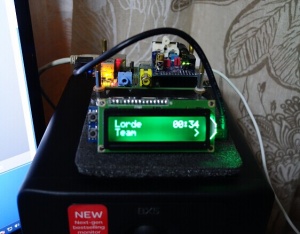

- Install the software of lcdproc screen display
sudo apt-get install lcdproc


- Edit deploying file
sudo nano /etc/LCDd.conf


- Find out and Revise the following contect:
Revise 'Driver=curses ' for  'Driver=hd44780'
Revise '#ServerScreen=no' for 'ServerScreen=off'
Find out [hd44780] and revise the information:
[hd44780]
ConnectionType=lcd2usb
Contrast=850
Brightness=800
OffBrightness=0
Keypad=yes
Backlight=yes
Size=16×2
KeyDirect_1=Up
KeyDirect_2=Down
- Install software of MPDlcd
sudo apt-get install python-mpd
sudo apt-get install python-pip
sudo pip install mpdlcd
wget -O /etc/mpdlcd.conf
- Operate related software when startup deploy system
sudo update-rc.d LCDd defaults
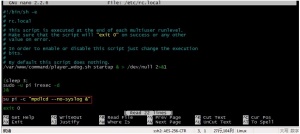
Edit /etc/rc.local, add the following order before exit0
su pi -c mpdlcd –no-syslog &

Download
Python annex: File:USBLCD1.zip
Packing List
- 1 x LCD Screen